
Note: For checkbox and radio button fields use the same field name to group these fields. When you select one field, the system updates the group based on the field type.
Add a checkbox field
- Open the PDF in Nitro PDF Pro
- On the Forms tab, in the Form Fields group, click Checkbox

- Drag the pointer on the page to create the field
- Open the field properties:
- Double-click the field
- Or right-click the field and select Properties
- Set the field name and appearance. Use one of these options:
- The Properties context tab

- The Properties dialog
- The Properties context tab
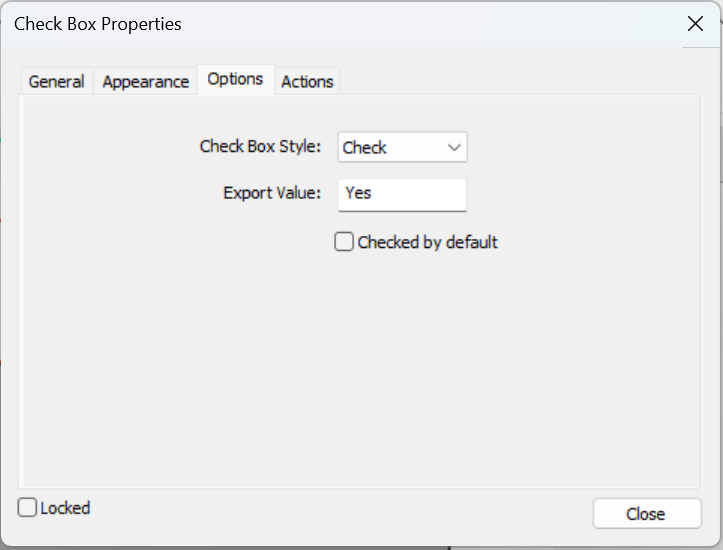
- Open the Options tab:
- From the context tab, click Properties > Options
- From the dialog, click Options
- Configure the check box:
- Checkbox Style: Select the appearance
- Export Value: Enter a value
- Checked by default: Select if required
Note: Use Export Value to define each option in a group. Assign a different export value to each field.
Edit a checkbox field
- Open the PDF in Nitro PDF Pro
- On the Forms tab, in the Form Fields group, do one of the following:
- Click the field type
- Click Select Fields
- Double-click the field to edit its properties