
Nitro PDF Pro includes tools to remove unnecessary objects and compress images. Use these tools to reduce the file size of a PDF document.
Optimize a PDF file
- Click File > Optimize PDF
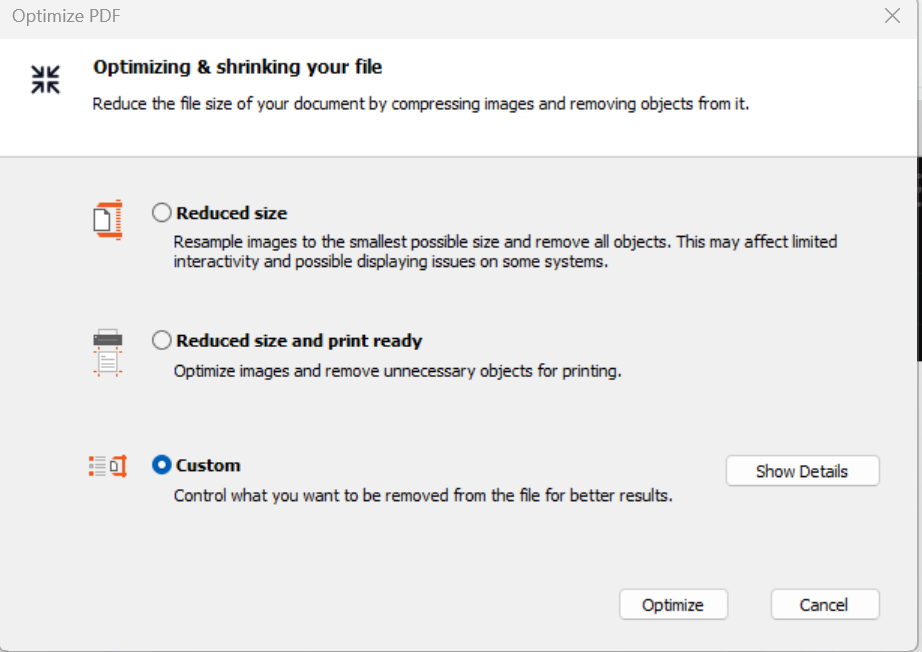
- Select one of the following options:
- Reduced Size
Optimize the PDF file to the smallest possible size.
Click Show Details to view the changes. - Reduced Size and Print Ready
Optimize the PDF file for a small size while maintaining print quality.
Click Show Details to view the changes. - Custom
Click Show Details to configure the following options: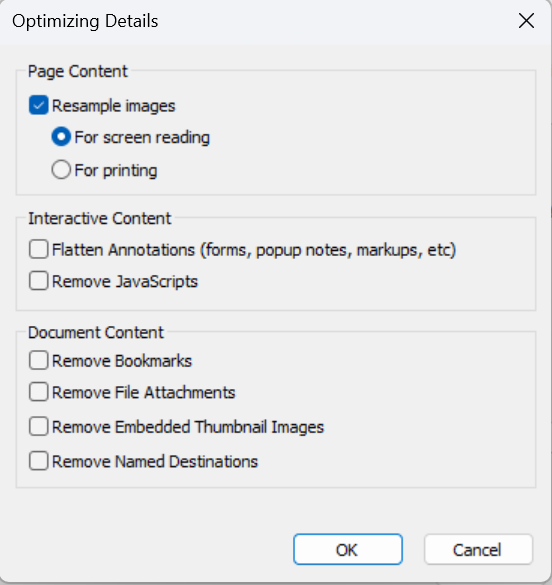
- Resample images
Select this option. Then select the required compression level - Interactive content
Remove interactive elements that are not required - Document content
Select additional content to remove and reduce file size - Remove bookmarks
Remove bookmarks. Bookmarks are optional for viewing - Remove file attachments
Remove attachments. Attachments can increase file size.
Removing attachments does not change page content. - Remove embedded thumbnail images
Remove thumbnail images used in the Pages pane.
The application can generate thumbnails when needed. - Remove named destinations
Remove links to internal document locations.
Some documents do not require these links. - Remove unused objects
Remove unused JavaScript or annotation objects. - Remove only invalid or unused links
Remove links that are invalid or not used.
- Resample images
- Reduced Size
- Click OK to apply the changes, or click Cancel to stop the process