
If your PDF contains scanned images or non-selectable text, you can use Nitro PDF Pro’s Optical Character Recognition (OCR) feature to convert it into a searchable or editable document. OCR makes it easy to extract and work with text from scanned files.
How to OCR a PDF:
- In Nitro PDF Pro, open a PDF document you want to OCR
- On the Review tab, click the OCR button in the Documents panel

- In the Optical Character Recognition (OCR) dialog, choose whether the output text should be Searchable or Searchable and Editable
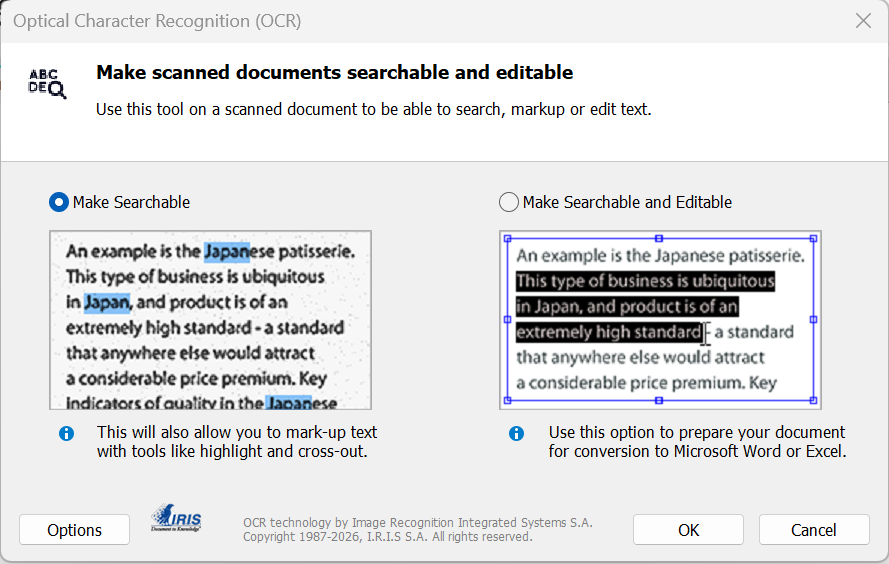
- Click the Options button to select a target page range, and click Advanced to configure OCR preferences
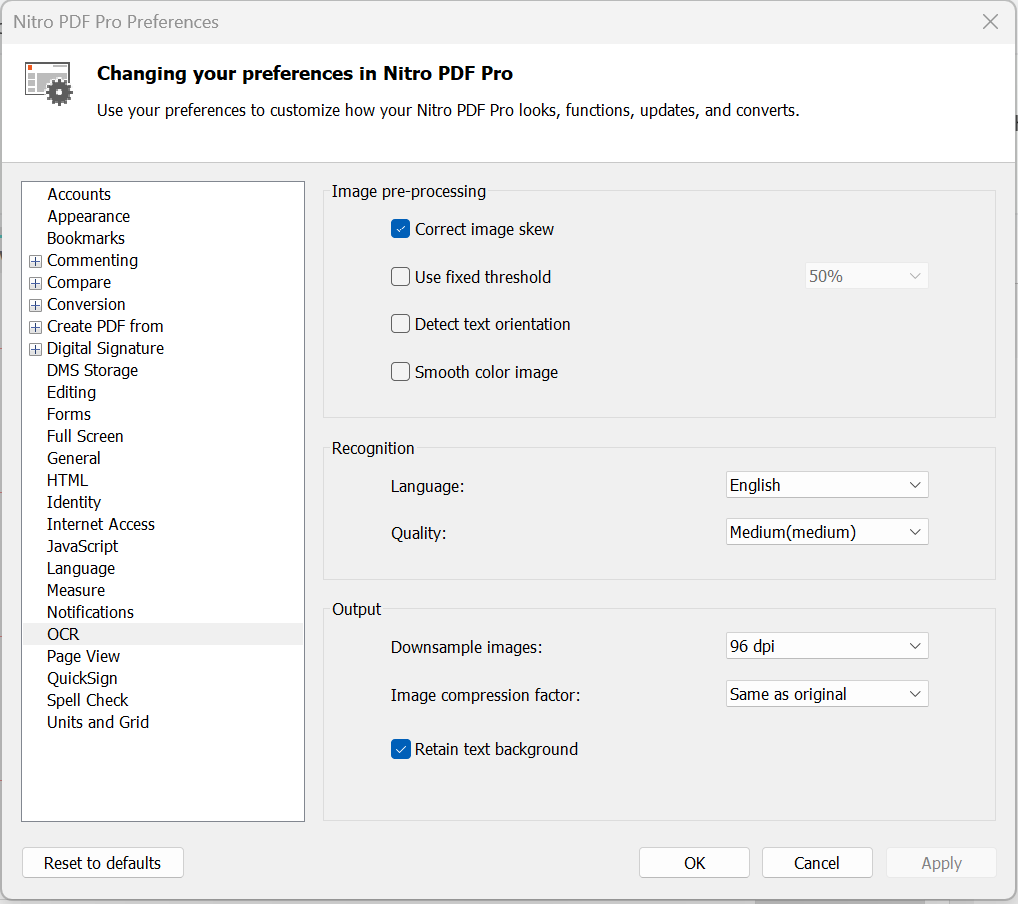
- Click OK to recognize the document’s text
How to OCR selective pages in a document:
- From the navigation tabs (displayed along the left side of the Nitro PDF Pro window), click the Pages tab
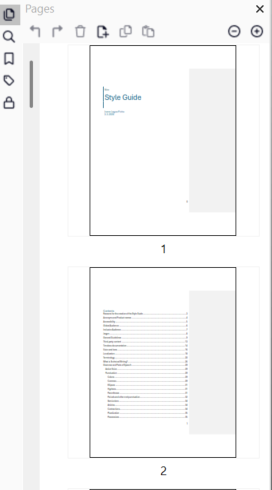
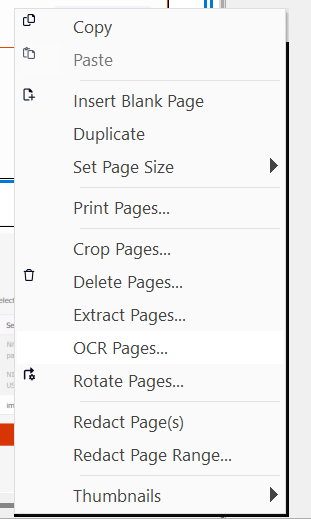
- Right-click on the required pages in the Pages pane and select OCR Pages… (hold down Control to select many)
- In the Optical Character Recognition (OCR) dialog, choose whether the output text should be Searchable or Searchable and Editable
- Click the Options button to select a target page range, and click Advanced to configure OCR preferences
- Click OK to recognize the document’s text