
Use Nitro PDF Pro to extract one or more pages from a PDF document. This action creates a new document that contains the selected pages. You can also delete the extracted pages from the original document.
To extract pages using the Extract pages tool:
- On the Page Layout tab, in the Pages group, select the Extract tool

- In the Extract Pages dialog, select the pages to extract
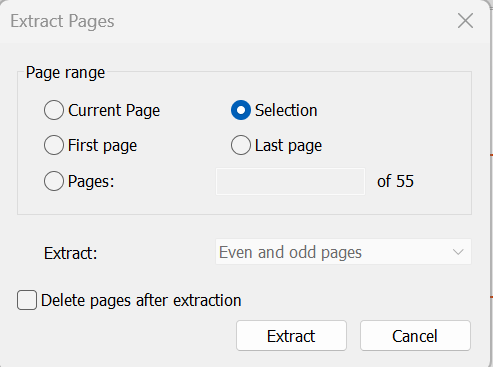
- Optional: Select Delete pages after extraction
- Click Extract