
Use the Crop tool to keep a selected area of a page and remove content outside the selection. You can also adjust the crop area in the Crop Pages dialog.
To crop pages visually:
- On the Page Layout tab, in the Pages group, click Crop

- Drag to select the area to keep
- In the Crop Properties tab, adjust the crop margins and select additional pages, if required

- Click Apply Crop
To crop pages using the dialog:
- On the Page Layout tab, in the Pages group, click Crop
- Double-click anywhere on the page
- In the Crop Pages dialog, adjust the crop margins and select additional pages, if required
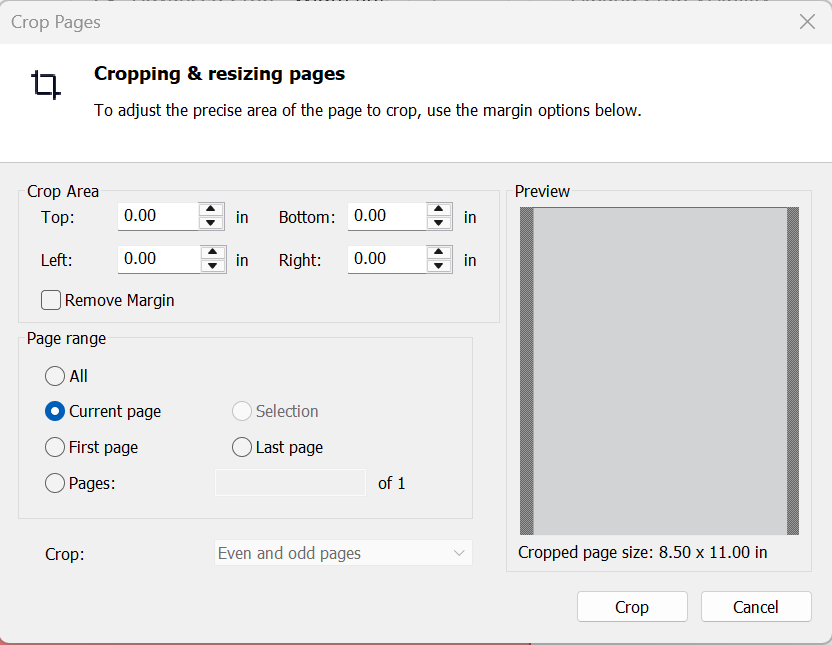
- Click Crop