
A button field performs an action when a user clicks it.
Use button fields to:
- Navigate within a document
- Open links
- Run actions or scripts
You can use buttons in forms and in standard PDF documents.
Add a button field
- Open the PDF in Nitro PDF Pro
- On the Forms tab, in the Form Fields group, click Button

- Drag the pointer on the page to create the field
- Open the field properties:
- Double-click the field
- Or right-click the field and select Properties
- Set the field name and appearance. Use one of these options:
- The Properties context tab

- The Properties dialog
- The Properties context tab
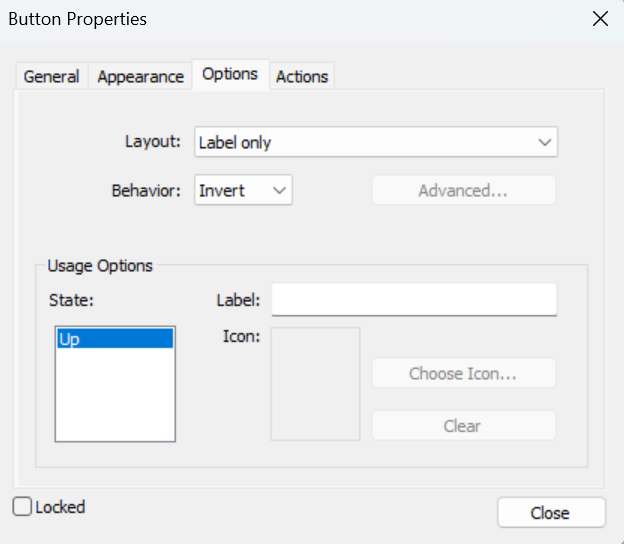
- Open the Options tab:
- From the context tab, click Properties > Options
- From the dialog, click Options
- Configure the button appearance:
- Select a layout option to display text, an icon, or both
Assign an action
- Open the Actions tab
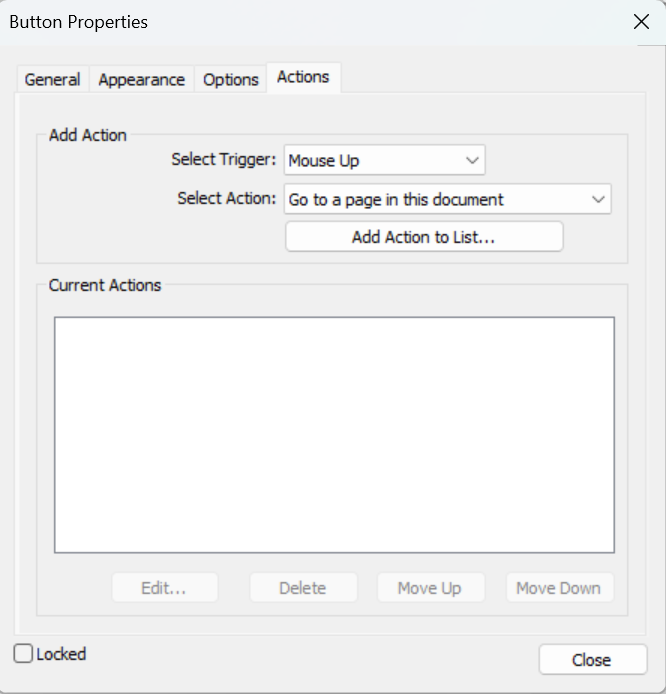
- Select a trigger:
- Use the default Mouse Up option unless you need a different trigger
- In Select Action, choose an action
- Configure the selected action as required
Edit a button field
- Open the PDF in Nitro PDF Pro
- On the Forms tab, in the Form Fields group, do one of the following:
- Click the field type
- Click Select Fields
- Double-click the field to edit its properties