
Optimize a PDF to reduce the file size or prepare the file for a specific purpose, such as online sharing, printing, archiving, or storing scanned documents. Select an optimization profile, or create a custom profile to control how the file is optimized.
- Open a PDF file
- Go to File
- Select Create Optimized PDF
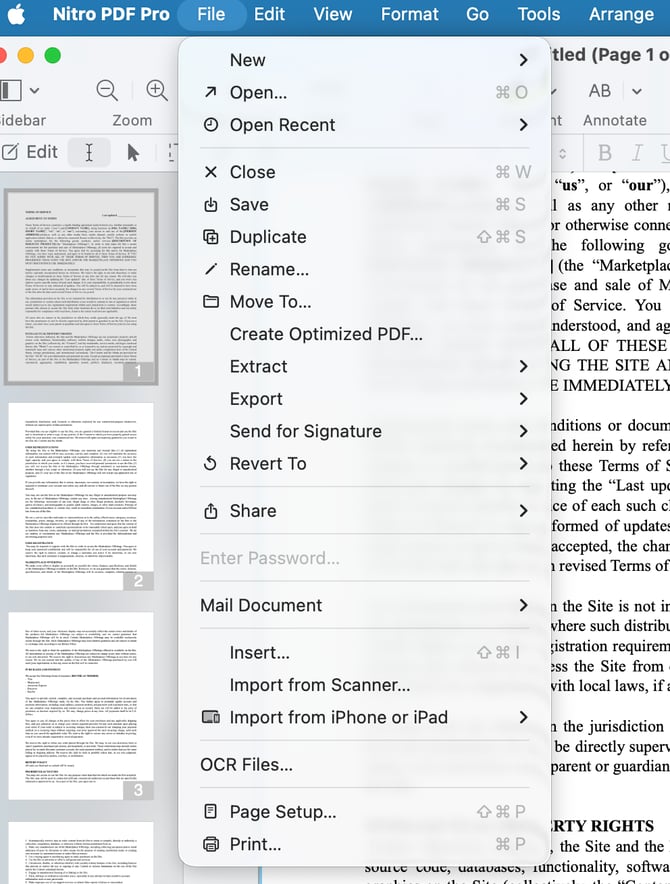
- The Optimize PDF window opens
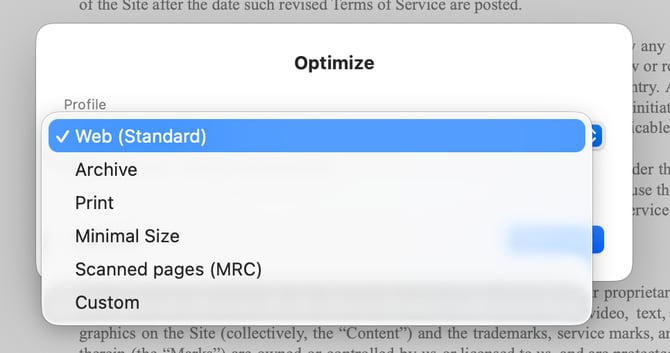
- Select one of these profiles:
- Web (Standard): Reduces the file size. Best for online use.
- Archive: Preserves the file for archiving.
- Print: Optimizes the file for printing.
- Minimal Size: Compresses the file to the smallest possible size.
- Scanned Pages (MRC): Optimizes scanned pages.
- Custom: Lets you adjust settings for images, interactive content, and cleanup.
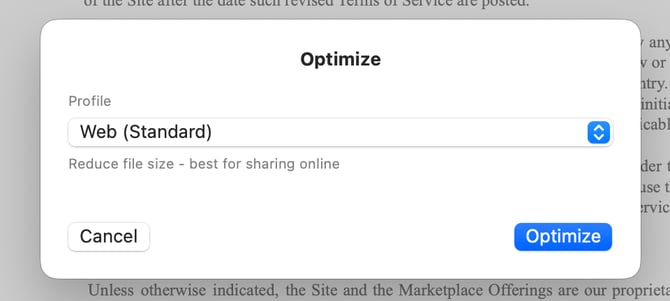
- Click Optimize to optimize the file, or click Cancel to close the window without making changes
- The optimized PDF opens in a new tab
- A confirmation message states that the file was optimized successfully
-1.png?width=540&height=262&name=image%20(1)-1.png)
- Click OK
- The optimized file opens in a new tab
Note: The file opens as Untitled and is ready to be saved