
To Change the Location or Size of a Text Block:
1. Open the file
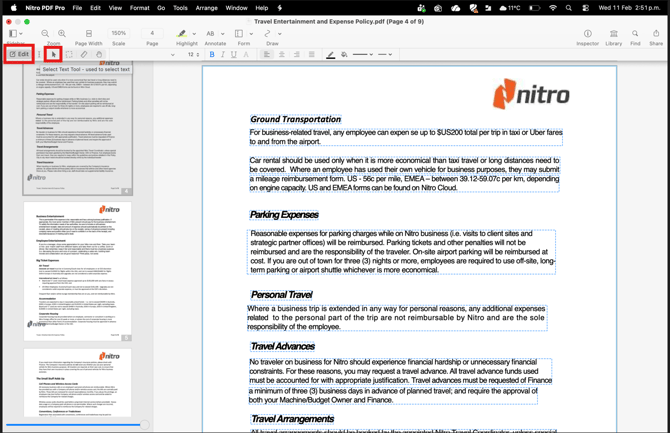
2. Click the Edit icon
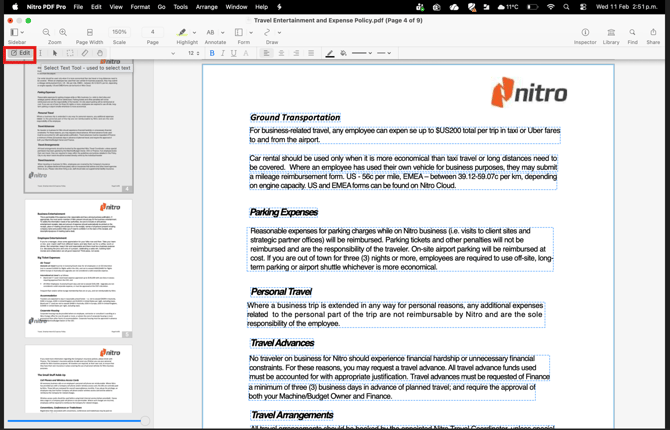
3. Text blocks appear with a dashed outline.
.png?width=670&height=436&name=Screenshot%203-20260211-151732%20(1).png)
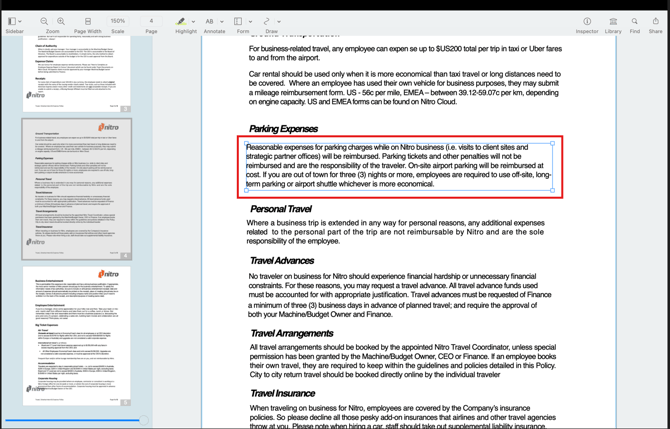
4. Click the text block
-
To change the location, drag the text block to the new position.
-
To change the size, drag the boundary handles to adjust the width or height.
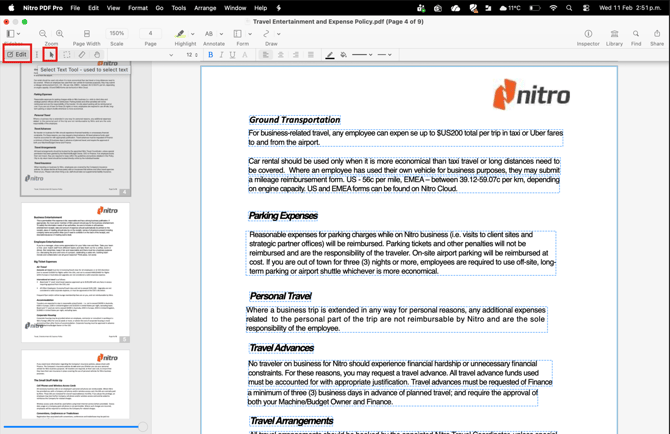
5. When you finish editing, click outside the paragraph or click the Edit tool again to finalize the changes.
6. To continue editing, click the Select Text icon to select text inside the text block.
To Edit the Appearance of Text:
1. Open the file.
2. Click the Edit icon.
3. Text blocks appear with a dashed outline
4. Select the text.
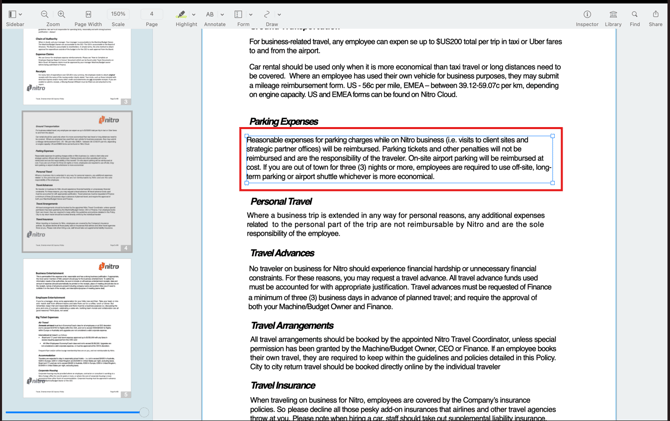
5. Use the edit bar to:
-
Change the font
-
Change the font size
-
Change the font color
-
Apply underline styles
-
Apply text effects
-
Change text alignment
-
Add highlights and change the highlight color
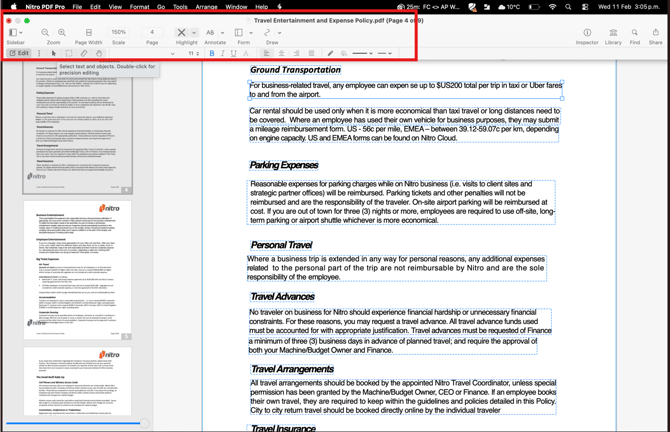
6. When you finish editing, click the Edit tool again to finalize the changes or Click the Select Text icon to select text inside the text block
For detailed instructions on text appearance, visit Use the Editing Bar and Format Text.