
Microsoft Intune is a cloud-based service that manages and protects devices, applications, and data. You can use it to manage mobile devices, desktop systems, and virtual endpoints.
Nitro PDF Pro for iOS supports deployment and management through Intune.
Prerequisites
Before you begin, make sure that you have:
-
Microsoft Intune admin access
-
The latest version of Nitro PDF Pro (recommended)
-
A supported iOS device
-
Devices enrolled in Mobile Device Management (MDM)
Note: Intune App Protection (MAM) without device enrollment is supported; however, features that rely on device management, such as Managed App Configuration, require MDM enrollment.
Enable Intune and Sign In
-
Open Nitro PDF Pro
-
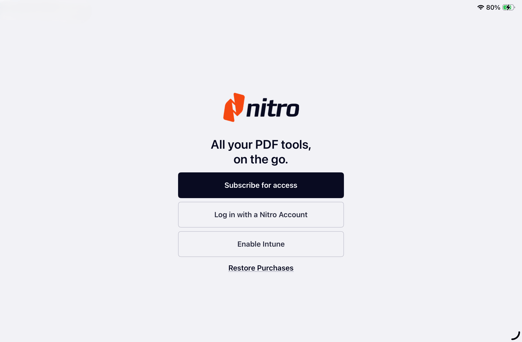
On the welcome screen, select Enable Intune
-
Enter the Intune account provided by your IT administrator
-
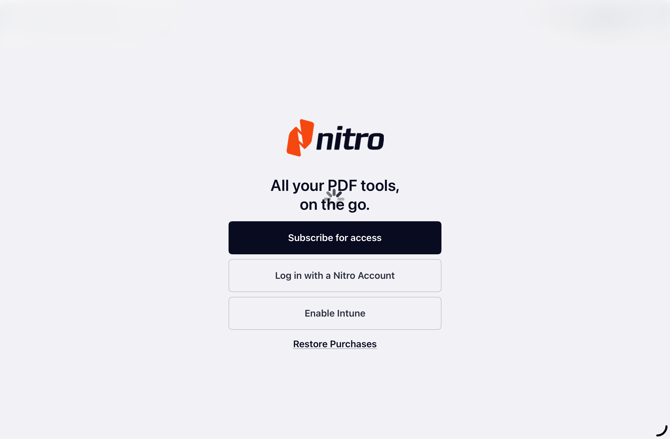
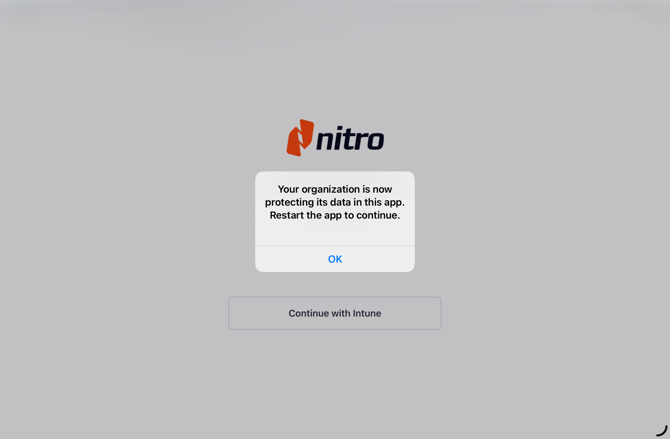
Wait for the app to complete configuration
The app may restart automatically
-
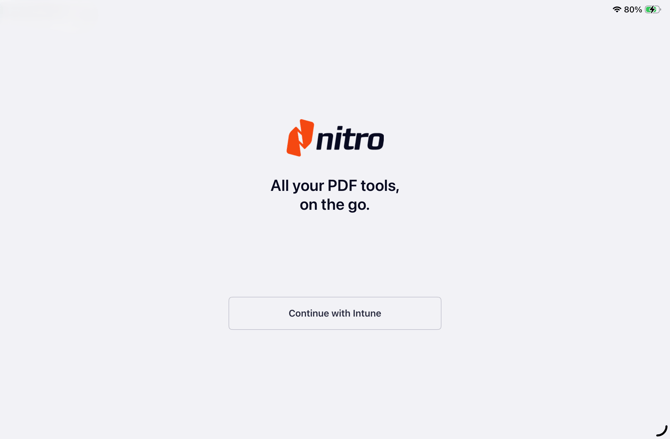
After the app restarts, select Continue with Intune
-
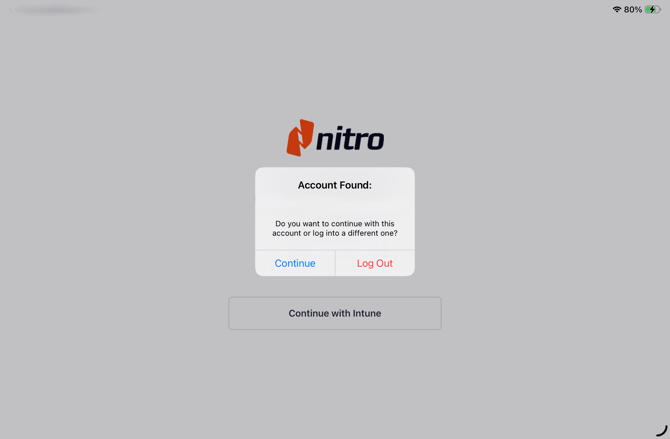
When prompted, select Continue to use the previously added account
-
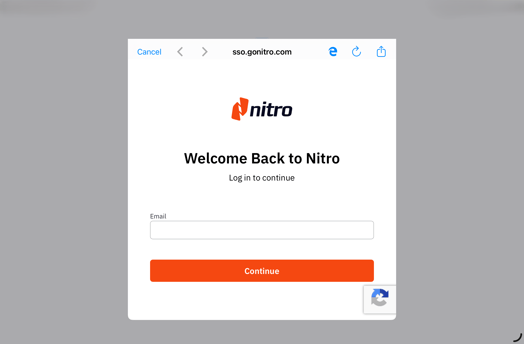
Enter your Nitro account credentials
Sign Out of Nitro PDF Pro and Intune
-
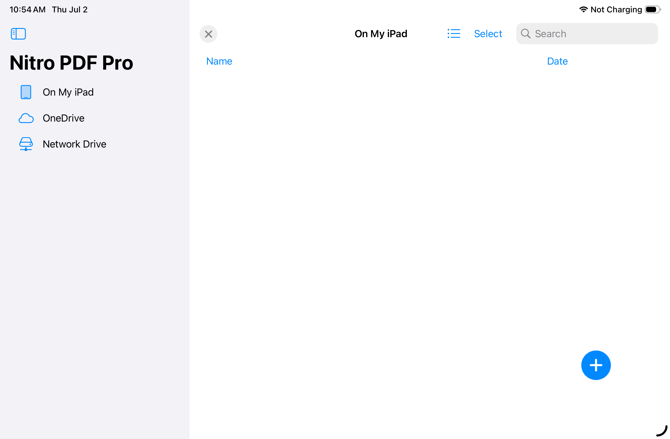
Open the file browser
-
Select the Settings icon (gear icon)
-
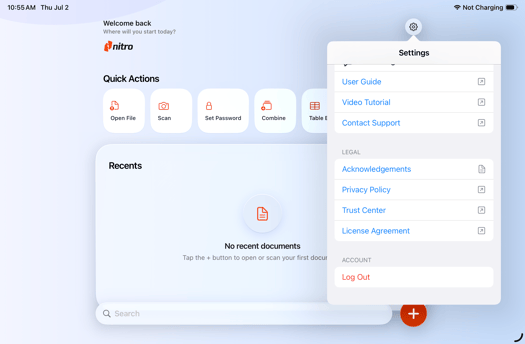
Scroll to the bottom of the Settings page
-
Select Log Out
Note: If you are signed in to Intune, signing out of your Nitro account also signs you out of Intune. You must restart the entire sign-in process to access both services again.
Admin Consent Requirement (Microsoft Entra)
Starting with Intune SDK 21.0.0 (included in Nitro PDF Pro for iOS version 26.0), Microsoft requires admin consent for application access.
If admin consent is not granted, users may experience service interruptions.
Action Required
IT administrators must grant admin consent for Nitro PDF Pro for iOS in Microsoft Entra.
Grant Admin Consent
-
Go to the Microsoft Entra admin center
-
Open All applications
-
Select Nitro PDF Pro for iOS
-
Under Security, select Permissions
-
Select Grant admin consent for [Tenant Name]
-
Confirm the action
-
Refresh the page to verify that permissions are granted
Note: Microsoft recommends that administrators grant consent in advance to avoid disruption to users.