
What is Form Extract?
Form Extract is a Nitro AI tool that automatically reads completed fillable PDF forms and compiles the data into a structured spreadsheet.
When users fill out a PDF form, their responses are stored alongside each field label inside the file. Form Extract reads that information and organizes it into a table: one row per form, one column per field. This makes it easy to consolidate responses from multiple people who filled out the same form.
Form Extract is ideal for collecting and organizing data from surveys, applications, registration forms, and any other fillable PDF distributed to multiple respondents.
Access Form Extract
Nitro Workspace
-
Go to Nitro Workspace
-
In the Tools section, click the Form Extract card to open the tool
Nitro PDF Pro
Form Extract is also available directly in Nitro PDF Pro for Windows and Mac. Click here to learn more.
Upload Your Files
On the Form Extract upload screen:
-
Select your files using one of the available options:
-
Drag and drop files into the upload area, or
-
Click Upload From Device to browse your computer, or
-
Connect to a cloud storage source: Dropbox, OneDrive, Google Drive, Box, or SharePoint
-
-
Click Continue to process your files
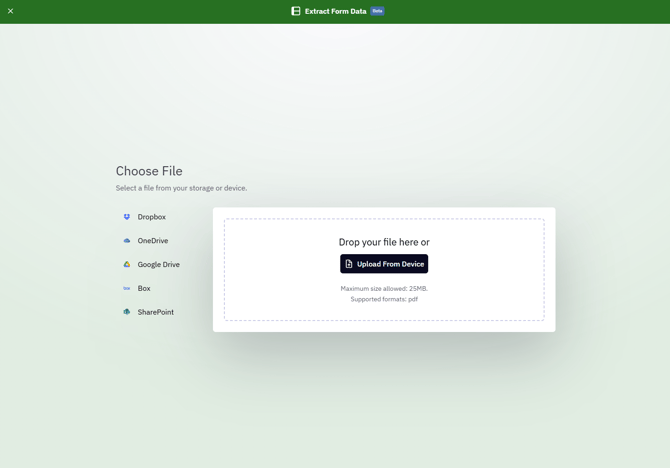
Supported format: PDF only. Maximum file size: 25MB per file
Note: Form Extract works with fillable PDF forms (also known as AcroForms). Files without fillable fields will be flagged during processing.
Review Extracted Data
Once you upload your files, Form Extract processes them automatically.
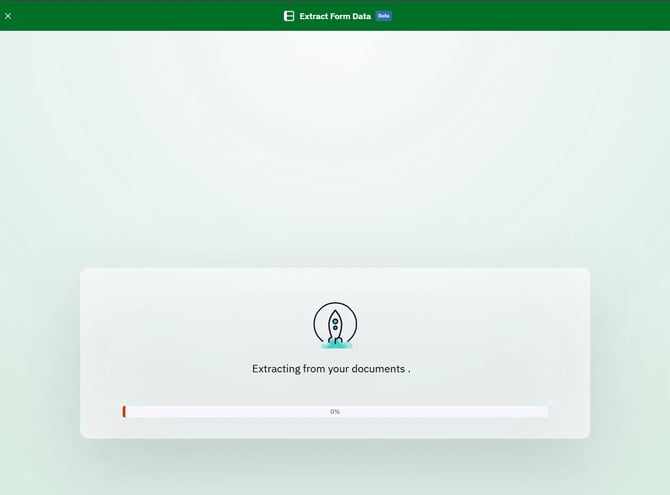
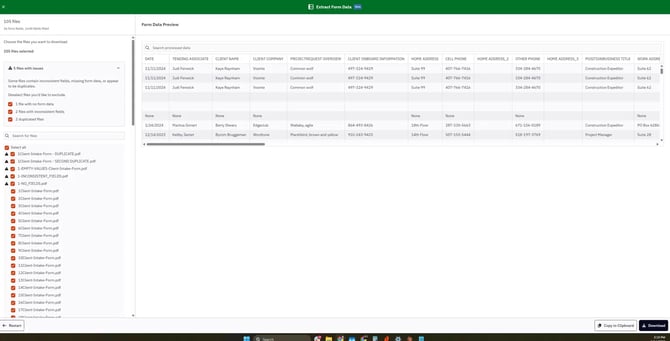
When processing is complete, the results screen is divided into two panels:
-
Left panel: the list of processed files and a summary of any issues found
-
Right panel: a preview of the extracted data table
Understanding the file list
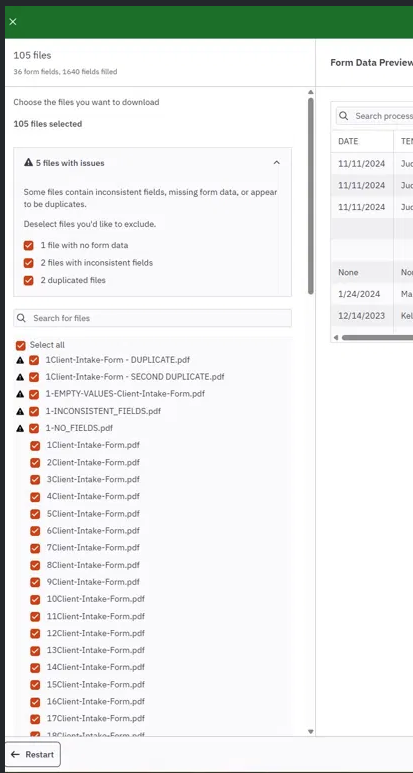
The left panel shows how many files were processed and how many fields were found across all of them. Files with issues are grouped and flagged at the top. There are three types of issues:
-
No form data: the file contains no fillable fields
-
Inconsistent fields: the file has fields that don't match the other forms
-
Duplicated files: the file appears to be a duplicate of another uploaded file
- keep the inconsistent file as part of the spreadsheet (checked box), or
- remove it from processing (unchecked box)
Flagged files are still selected by default. Uncheck any file you want to exclude from the final output.
Use the Search for files bar to find a specific file by name.
Previewing the data
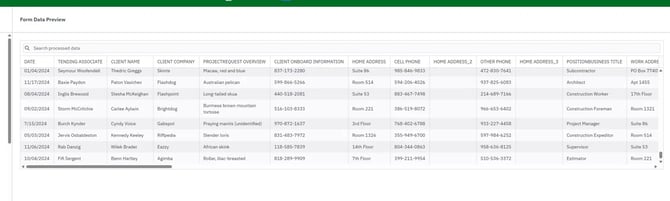
The right panel shows a Form Data Preview table with one row per form and one column per field. Use the search bar above the table to filter the extracted data.
Export Your Data
When you are ready to export, two options are available at the bottom right of the screen:
Copy to Clipboard
Click Copy to Clipboard to copy the extracted data instantly. You can then paste it directly into any spreadsheet or application.

Download
Click Download to save the extracted data as an Excel file.
-
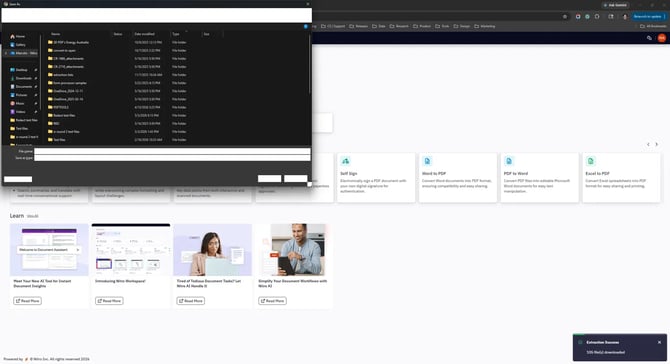
The tool closes and a confirmation notification appears in the bottom right corner of the screen
-
A Save As dialog opens so you can choose where to save the file on your device
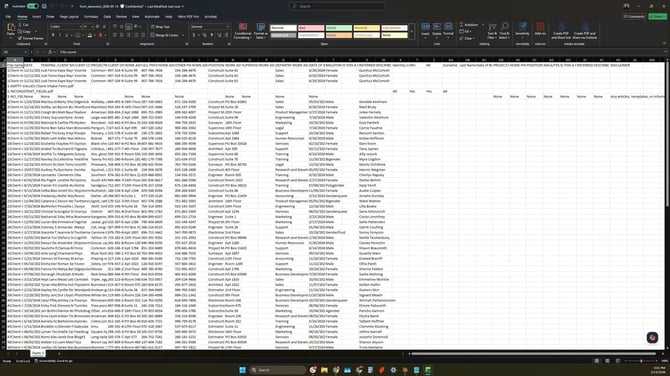
The downloaded file contains all selected form data organized in a spreadsheet, with one row per form and one column per field.
Note: If no dialog appears, your browser may have downloaded the file automatically to your default downloads folder.