
Smart Compare [Beta]
What is Nitro Smart Compare?
Nitro Smart Compare shows you what changed between two versions of a document. It opens both versions side by side, highlights the text differences on the page, and uses AI to summarize the changes so you can review them quickly.
Smart Compare is currently in Beta. During Beta, you can view the changes and the summary in Nitro Workspace. Downloading or exporting the comparison is not available.
How to Use Nitro Smart Compare
Access Nitro Smart Compare
-
Open Nitro Workspace
-
Go to Tools
-
Click Smart Compare
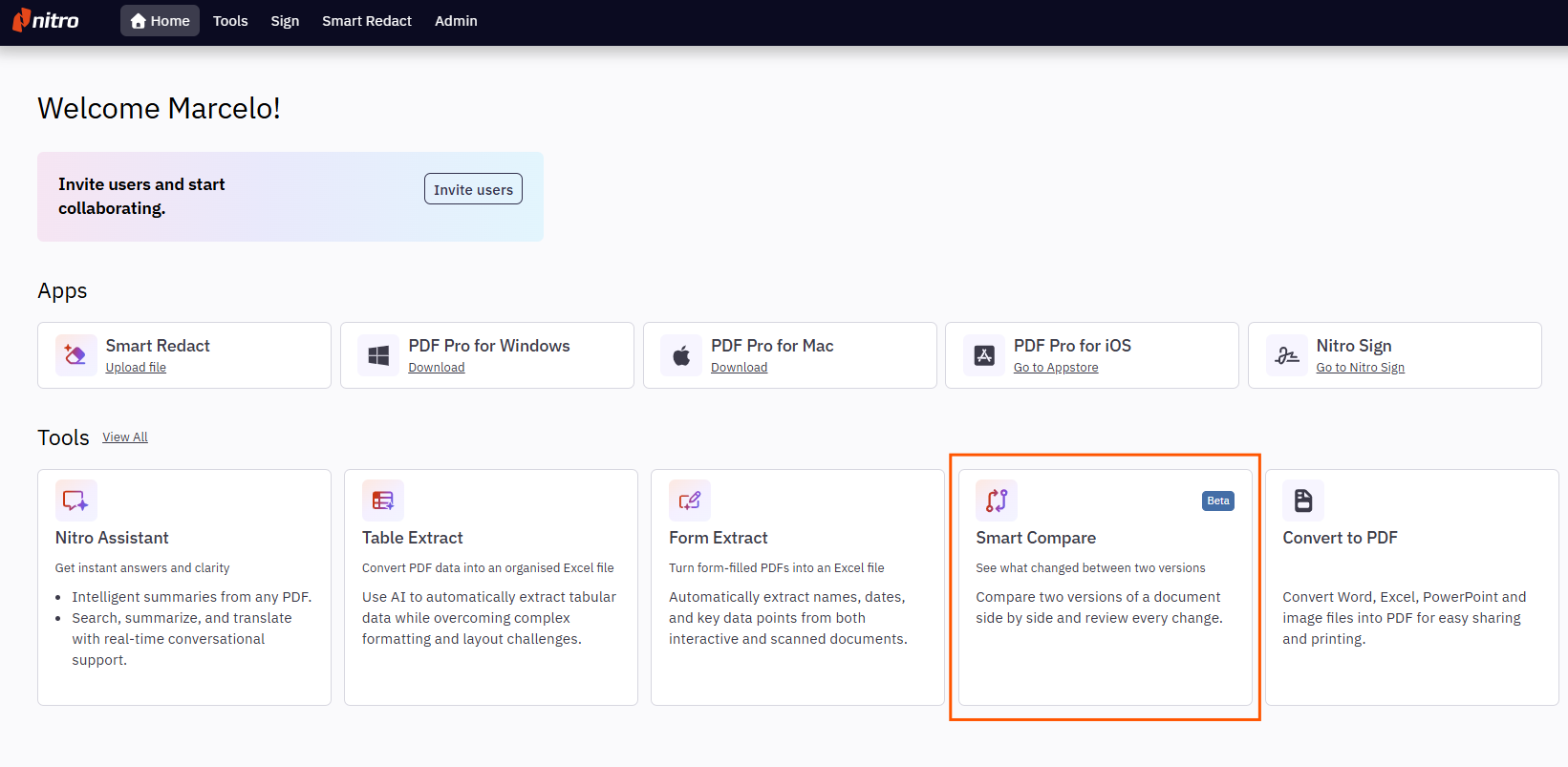
Note: Smart Compare is a Generative AI tool. It is available only when your account administrator has enabled Generative AI Tools under AI & Cloud Services Preferences in Nitro Admin. See Enable / Disable Nitro AI Tools.
Upload Your Documents
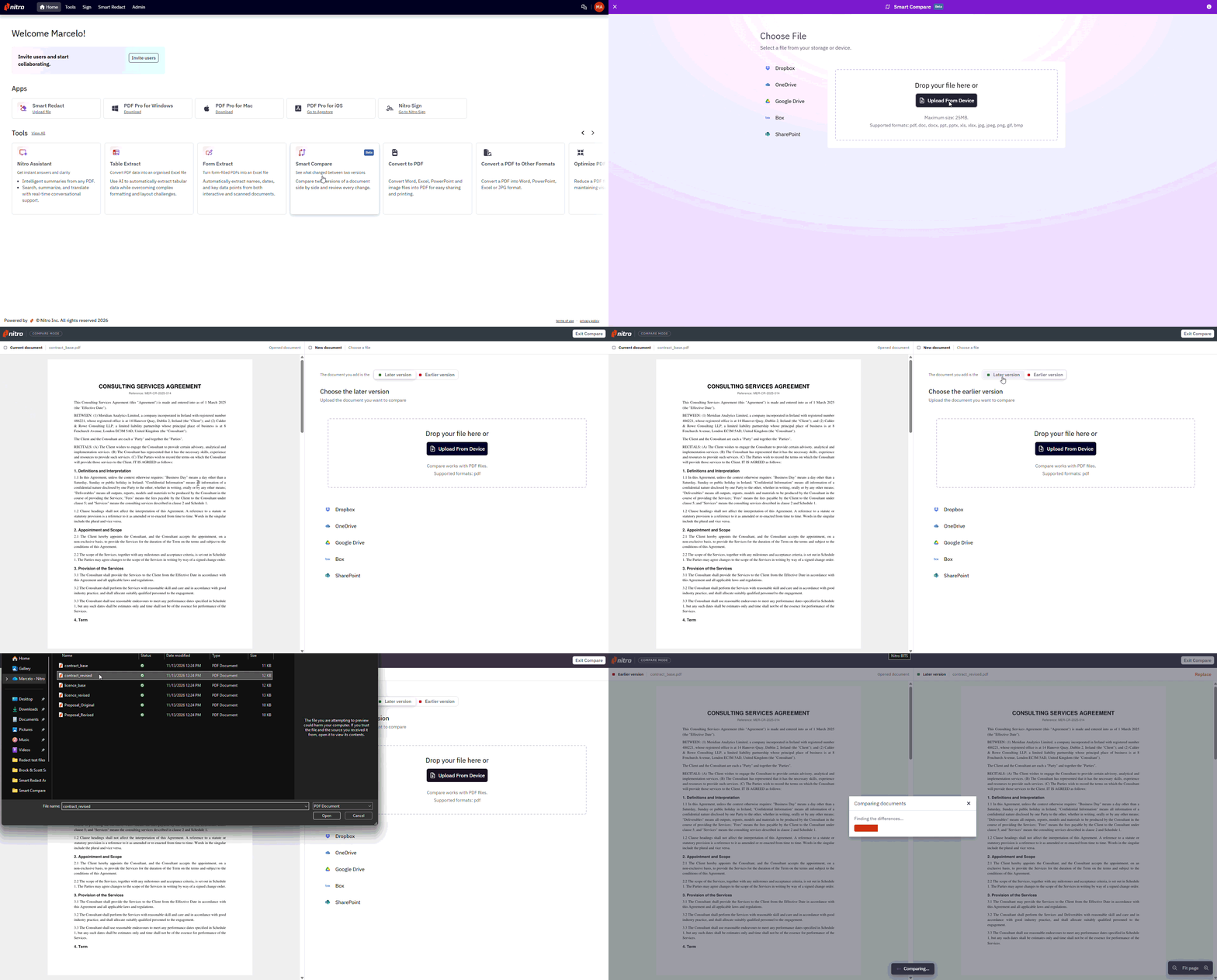
- Upload the first document. It opens on one side of the screen
- On the empty side, select whether the second document is the Later version or the Earlier version of the first
- Upload the second document
- Wait while Smart Compare uploads the documents, finds the differences, and prepares the summary
Supported files
-
First document: PDF, Word (DOC, DOCX), Excel (XLS, XLSX), PowerPoint (PPT, PPTX), or image (JPG, JPEG, PNG)
-
Second document: PDF only
-
File size: up to 25 MB for each document
-
Languages: languages that use the Latin alphabet, for example, English, Spanish, and German
Notes:
-
The second document must be a PDF. Convert other file types to PDF before you upload them
-
If the first document is not a PDF, it is converted to PDF automatically when it opens
-
Smart Compare runs OCR on both documents, so you can compare scanned documents and images
Review the Changes
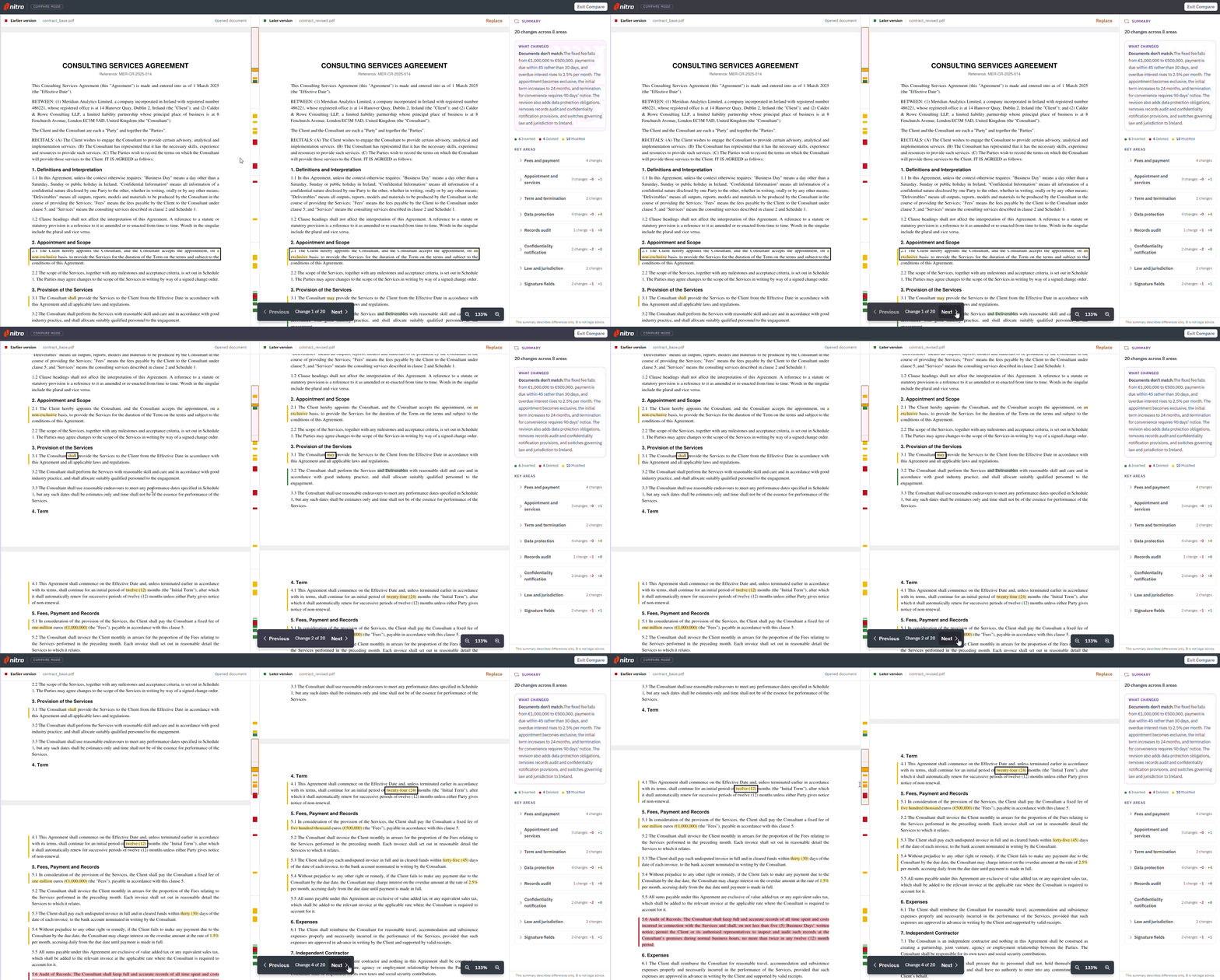
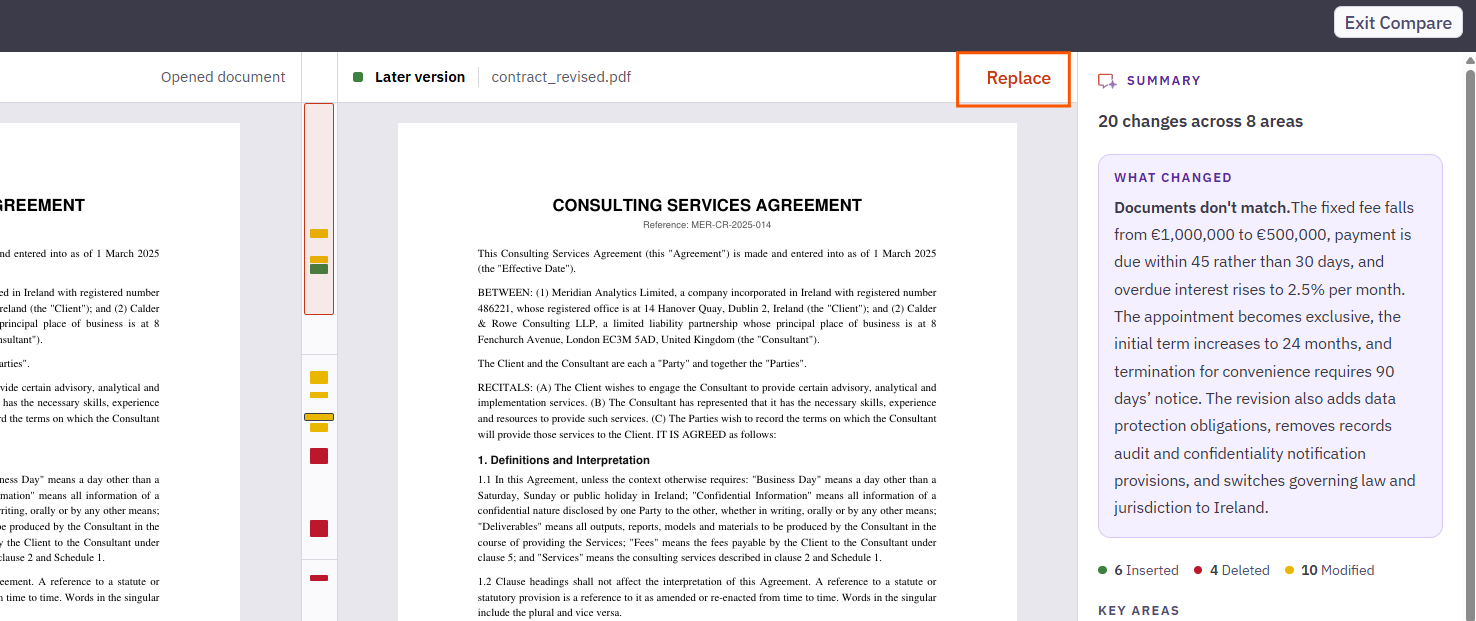
Both versions are shown side by side, labeled Earlier version and Later version. Scrolling and zooming stay in sync, so the same part of both documents is always in view.
Differences are highlighted on the page, with a bar in the margin beside each changed paragraph. The track between the two documents shows where the changes are across the whole document.
What is compared
Smart Compare compares the text in both documents, including text in tables, text in images, and handwriting.
Note: Annotations and comments are not compared.
Types of changes
Each change is one of four types:
-
Inserted: content that appears only in the later version
-
Deleted: content that appears only in the earlier version
-
Modified: content that was reworded
-
Reformatted: only punctuation, spacing, or capitalization changed
Pages that were added or removed between the two versions are also flagged as changes and are included in the change count.
Note: Review Reformatted changes too. A change in punctuation can change the meaning of a sentence, for example in a contract.
Move between changes
Use Previous and Next in the toolbar to step through the changes one at a time. The toolbar shows your position, for example “Change 3 of 12”.
Use the Summary
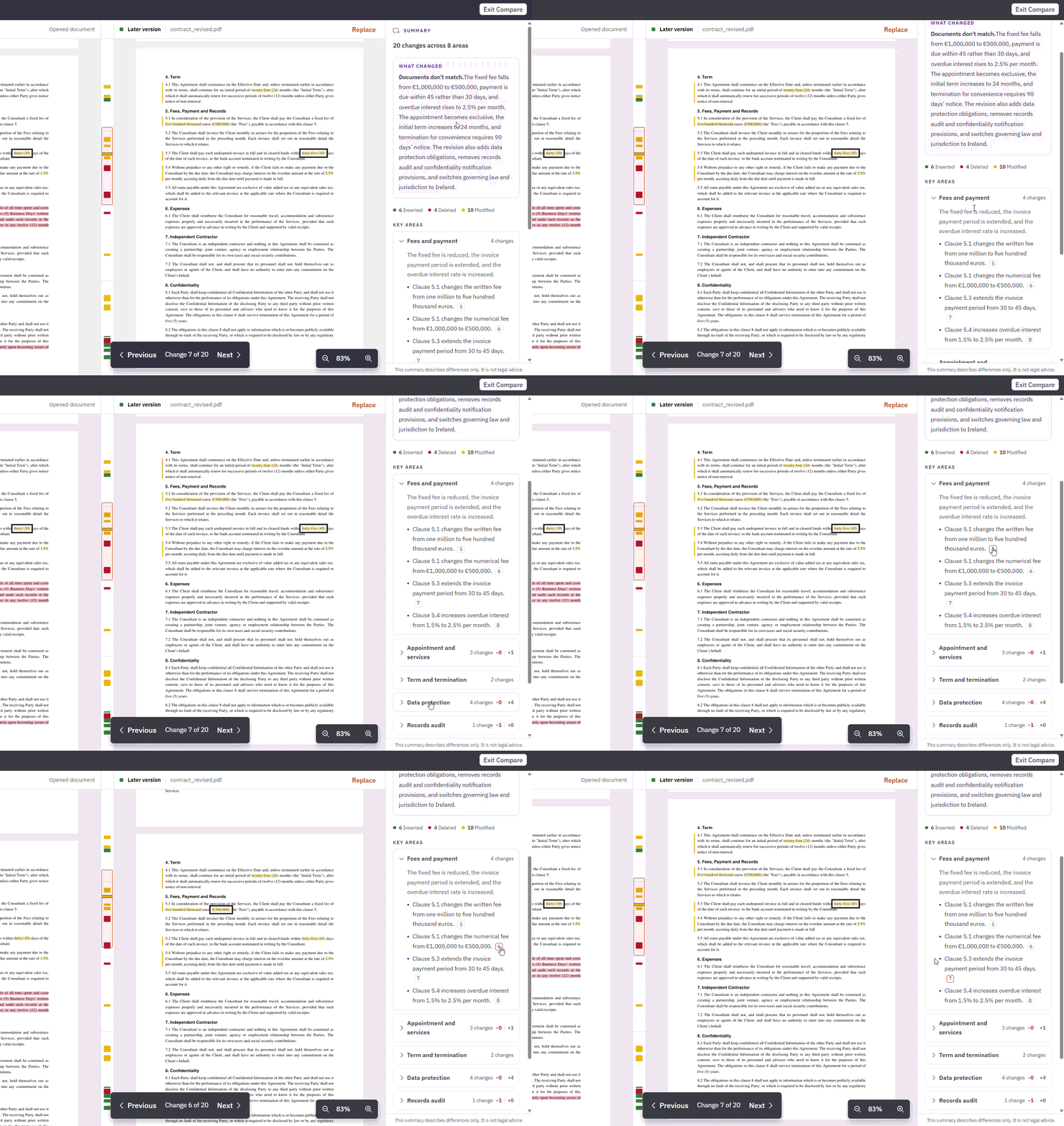
The Summary panel gives an overview of the comparison:
-
What changed: whether the documents match, match apart from formatting, or do not match
-
A count of the changes of each type
-
Key areas: related changes grouped together, each with a short description. Click the number beside a change to jump to it in the documents
Compare a Different Document
Click Replace above the second document to choose another file and run a new comparison.
Note: During Beta, you can replace only the second document. To change the first document, start a new comparison.
Disclaimer
Smart Compare uses AI to find and summarize differences. The summary can miss or misdescribe a change, so check the highlighted differences in the documents before you rely on it. The summary describes differences only. It is not legal advice.