
Swap the document on an existing template for an updated version. Your fields stay exactly where you placed them, so you don’t need to rebuild the template.
Note: Use this feature when the content has changed but the layout hasn't. For example, a new effective date, revised clauses, or updated branding.
The replacement file must match the original on both:
- Page count: same number of pages
- Page dimensions: same page size and orientation
If either doesn't match, the swap is rejected and your original document stays on the template.
Tip: If your new version has a different page count or page size, the layout has changed enough that fields would end up misplaced. Create a new template instead.
Swap the document
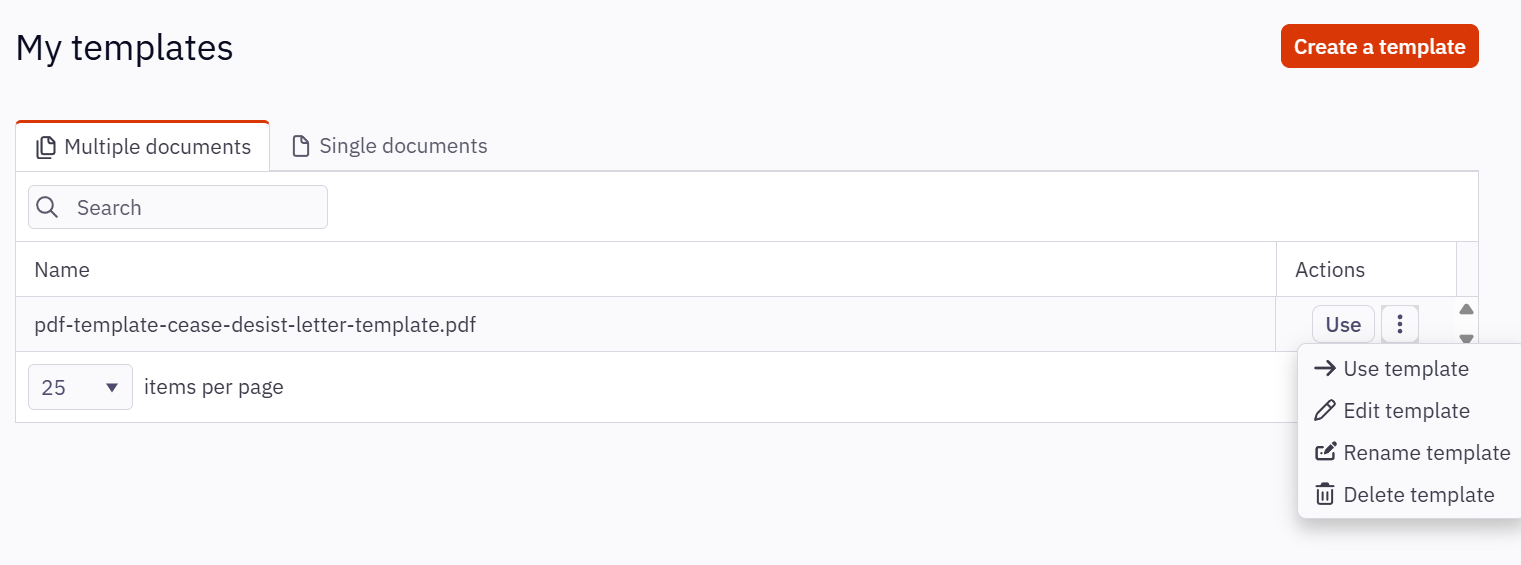
- Find the template you want to update
- Navigate to More actions and select Edit template
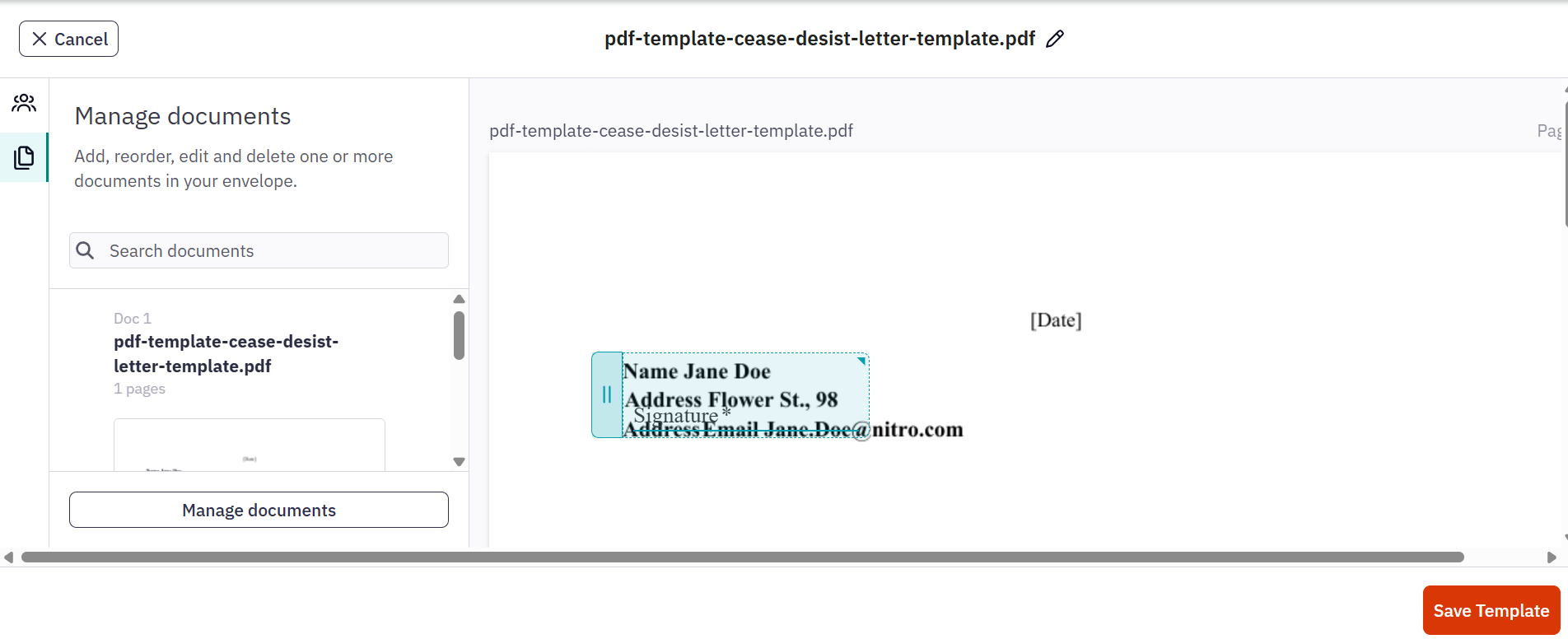
- Open the Documents tab and click Manage documents
- On the Manage documents screen, click the Swap button on the document you want to change
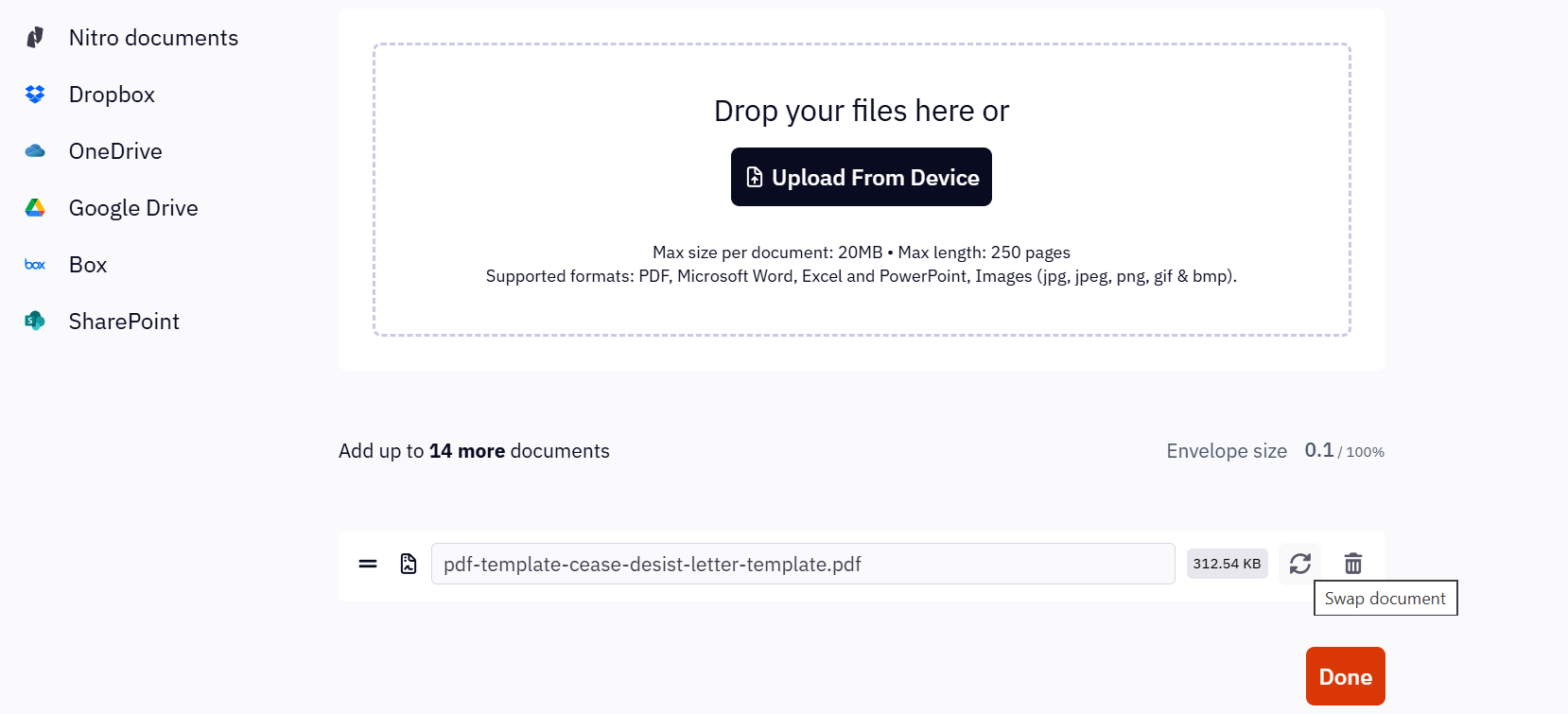
- Upload the replacement file
- Click Done
If the file matches: the document is replaced and saved. When you return to the Edit Template view, you'll see the new document with all your fields kept in place.
If the file doesn't match the original's page count or dimensions, you'll get an error, and your original document remains on the template.
What to check after a swap
Fields keep their original coordinates. They don't move to follow content. If the new document's text has shifted down or across the page, a field may no longer sit over the right spot.
After swapping:
- Review each page
- Confirm fields sit in the correct place
- Adjust any field that has drifted
- Save the template
Troubleshooting
The file looks identical, but the swap keeps failing.
Check the page size in your PDF's properties. Documents exported from a different tool or paper size (for example, Letter instead of A4) won't match, even if the content looks the same.
I need to add or remove a page.
Swapping can't change the page count. Create a new template from the updated document and place your fields there.
My fields are in the wrong place after the swap.
Fields stay at their original coordinates. Drag the affected fields into position and save the template.