The I.R.I.S. OCR plugin fully integrates with Nitro PDF Pro allowing it to recognize text from scanned pages, or from images in open PDF documents. The OCR utility is fully customizable, with options to configure options such as skewed image correction, to image compression settings. You can also enable text recognition for scanners directly on the Create PDF From Scanner dialog, to automatically create PDF documents from scanned pages with text that can be modified or searched.
To configure OCR preferences:
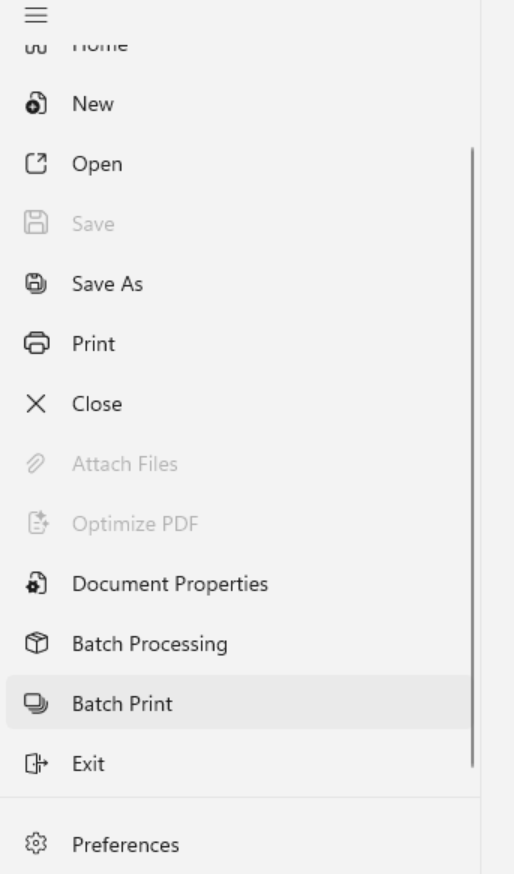
Click the File menu button in the top-left corner of the application
Click on the Preferences button at the bottom of the main menu
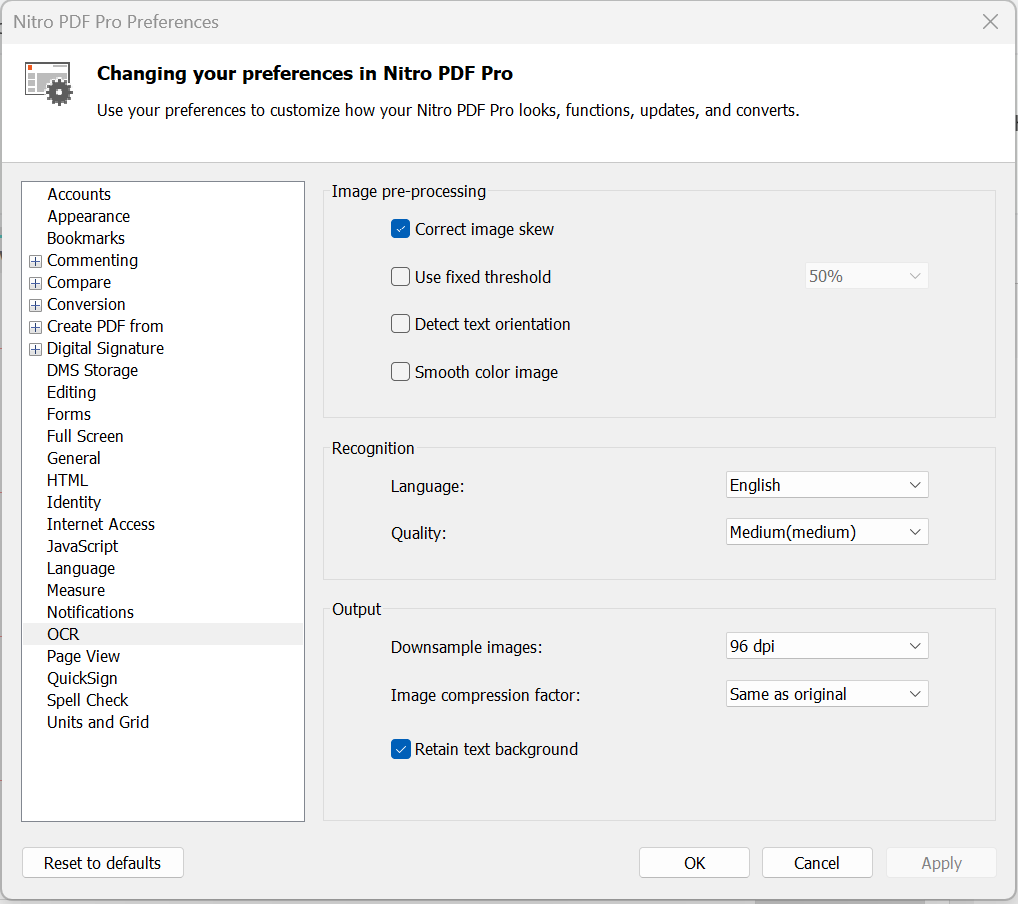
In the Preferences dialog, click on OCR in the categories column
OCR General Preferences
The general preferences to configure the OCR functionality are split into 3 categories, with the following options:
Correct image skew: Straighten any text which is skewed on the scanned document
Use fixed threshold: Thresholding is the process of analyzing the histogram of an image to distinguish the text from the background. A fixed threshold applies the same cut-off point to the entire image, as opposed to finding the text dynamically. The percentage values indicate the point at which the contrast between blacks and whites is ideal to recognize text, with 0% being completely dark and 100% being completely white. This setting is recommended if an image contains different background colors, or a background which varies in shading or gradient. For more common OCR operations, it is recommended to disable the fixed threshold setting
Detect text orientation: Rotate pages automatically when they have been scanned at 90, 180, or 270 degree angles
Smooth color image: Flatten out the colors of the image to remove the JPEG compression artifacts and help recognition
Language: Select the language of the scanned text you want to detect
Quality: Select between Low (fast), Medium (medium), and High (slow)
Downsample images: After the scan is complete, you are able to reduce the resolution of your scanned images to lower the size of the resultant PDF document
Image compression factor: The more an image is compressed, the smaller the file size of the output PDF. However, if your PDF document is intended for print, low compression is recommended to preserve quality
Last updated: June 30, 2026
Was this article helpful?
Thanks for your feedback. We're glad we could help.
Thank you. Your feedback will be used to make future improvements.
Thanks for your interest in Nitro!
For those requiring fewer than 20 licenses, our online store is the fastest way to access the same trusted Nitro PDF tools—optimized for simplicity, security, and speed.
Recommended plans for you:
Nitro PDF Standard
For Windows, Mac, and iOS
For individuals, small teams, and businesses seeking a full suite of PDF editing tools to boost productivity and streamline workflows.
For those requiring fewer than 20 licenses, our online store is the fastest way to access the same trusted Nitro Sign tools—optimized for simplicity, security, and speed.
Recommended plans for you:
Nitro Sign Standard
For Windows, Mac, and iOS
For individuals or small teams with basic signing needs.