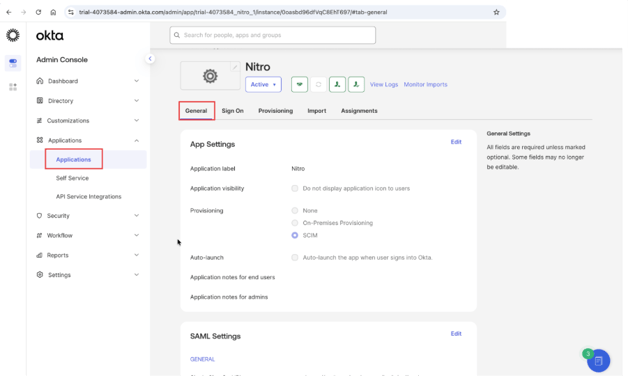
- Log in to the Okta Admin Console
- Go to Applications
- Select Nitro from the list
- Select the General tab
5. In SAML Settings, click Edit

6. Click Next to open Configure SAML

7. Click Show Advanced Settings

8. In Other Requestable SSO URLs, click Add Another

9. Enter the following URL and leave Index blank: https://auth.gonitro.com/login/callback
Important: Okta does not support query parameters (for example, ?connection=xxxx) in requestable SSO URLs. Only use the URL shown above.
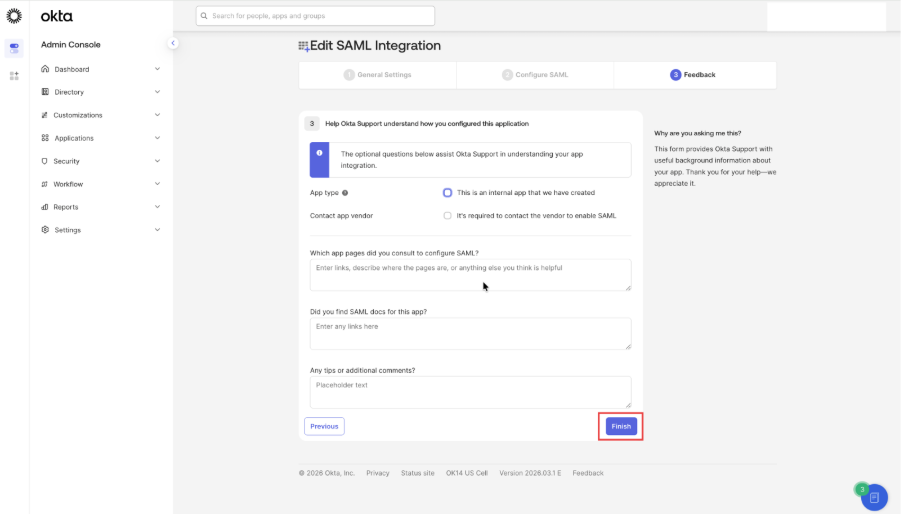
10. Click Next until you reach the final step, then click Finish to save the changes